Apps
Native Spotify
Describes how to listen to songs from Spotify on SailfishOS with Hutspot and Librespot.
DISCLAIMER: This only works with Spotify Premium accounts. A free Spotify subscription will not work with these applications
Hutspot
Overview
Hutspot is a native SailfishOS-app that acts as a Spotify-controller. It enables you to browse/search albums, artists, playlists and tracks. Playing the music is done on a 'connected' device. It requires a premium Spotify account.
Documentation
Documentation for the app can be found on https://sailfish-spotify.github.io/hutspot/ . The source code is also accessible under https://github.com/sailfish-spotify/hutspot
Installation
Hutspot is available in the Chum-repositories. To see it, you need to disable "Show only applications" in the Chum GUI app.
Fix authentication issue
The current version in Chum has an issue with the authentication, where you would need to authenticate every time you launch the app. To fix this issue, use a terminal app to copy the hutspot.desktop file to /etc/sailjail/applications:
cp /usr/share/applications/hutspot.desktop /etc/sailjail/applicationsAfter that, use a text editor (for example nano) to add the following lines to the file:
[X-Sailjail]
Sandboxing=DisabledUse Librespot to play songs
Overview
librespot is an open source client library for Spotify. It enables applications to use Spotify's service to control and play music and to act as a Spotify Connect receiver. Using this terminal-application in combination with a Spotify-controller like Hutspot, you can play songs from Spotify on your SailfishOS-Device without using the Android-app from Spotify itself. The source code is available on GitHub
Installation
Prebuilt package
ATTENTION: Currently (22.1.2026) this package DOES NOT work with 32-Bit devices (e.g. Sony Xperia XA2 series, Xperia 10,...). If you want to use Librespot on these devices, you might try build it yourself (see tutorial below)(no guarantees it will work, not tested by the author of this wiki)
NOTE: This package provides version 0.6.0 which is outdated. The latest version as of 21.7.2026 is 0.8.0 which you can get when building yourself.
There is a prebuilt package which a user uploaded to the forum. You can download it here (just click on librespot-0.6.0-1.31.1.bso.aarch64.rpm and it will download) . If you want to change the configuration, you can edit the command in the file /etc/systemd/user/librespot.service(see instructions below). This package installs Librespot as a service, so you can start and stop it from Hutspot directly.
Building it yourself
You can also get librespot directly an build it on your device. First, you need to install Rust. To do this, open a terminal and execute
curl --proto '=https' --tlsv1.2 -sSf https://sh.rustup.rs | shAfter the installation has finished, you need to restart your session. This can be done by just typing bash and hitting enter. You also need to install a few development packages. To install these, type in a terminal
devel-su pkcon refresh
devel-su pkcon install gcc git alsa-lib-devel openssl-devel -y
Now that you have everything necessary installed, you can get the source code from GitHub
git clone https://github.com/librespot-org/librespot
cd librespot/
After that, you can now build your application using cargo:
cargo build --release --features "alsa-backend pulseaudio-backend"Installing Librespot as a service
If you want to control Librespot from Hutspot, you need to install it as a service. If this was not already done with the installation of the prebuilt package, create a file librespot.service under /etc/systemd/user (you need administrator privileges for that, so use devel-su in the Terminal, e. g. devel-su nano /etc/systemd/user/librespot.service ).
In this file, paste the following:
[Unit]
Description=Librespot
After=network.target

[Service]
ExecStartPre=/bin/mkdir -m 0755 -p /home/defaultuser/.cache/librespot
Environment="DEVICE_NAME=Librespot-%H"
Environment="CACHE_ARGS=/home/defaultuser/.cache/librespot"
Environment="VOLUME_ARGS=--enable-volume-normalisation --initial-volume=100"
Environment="BACKEND_ARGS=--backend pulseaudio"
Environment="DEVICE_TYPE_ARGS=--device-type smartphone"
Environment="BINARY_PATH=/home/defaultuser/librespot/target/release/"
ExecStart=/bin/env "PULSE_PROP_media.role=x-maemo" /home/defaultuser/librespot/target/release/librespot --name ${DEVICE_NAME} $BACKEND_ARGS --b 320 --cache $CACHE_ARGS --enable-oauth $VOLUME_ARGS $DEVICE_TYPE_ARGS
If you have cloned the Librespot git-Repository to another location, change /home/defaultuser/librespot/ to the location pointing to your Librespot directory.
NOTE: Newer versions need the --enable-oath flag to authenticate properly
Now you can control Librespot with Hutspot (see below). When you use it for the first time, it will open a browser window where you need to login to Spotify. By default, you can start/stop Librespot with Hutspot, or let Hutspot do that for you. You can also let Librespot start at boot. If you want this, change line 3 of the librespot.service-file to the following:
# for start at boot you might want:
After=user-session.target network.target pulseaudio.service
Additionally, add the following to the end of the file:
[Install]
WantedBy=post-user-session.target
Unfortunately boot will fail probably since there is no network device. To enable those changes, run in the Terminal:
systemctl --user enable librespot(To disable again, use disable instead of enable )
Usage
Controlling Librespot with Hutspot
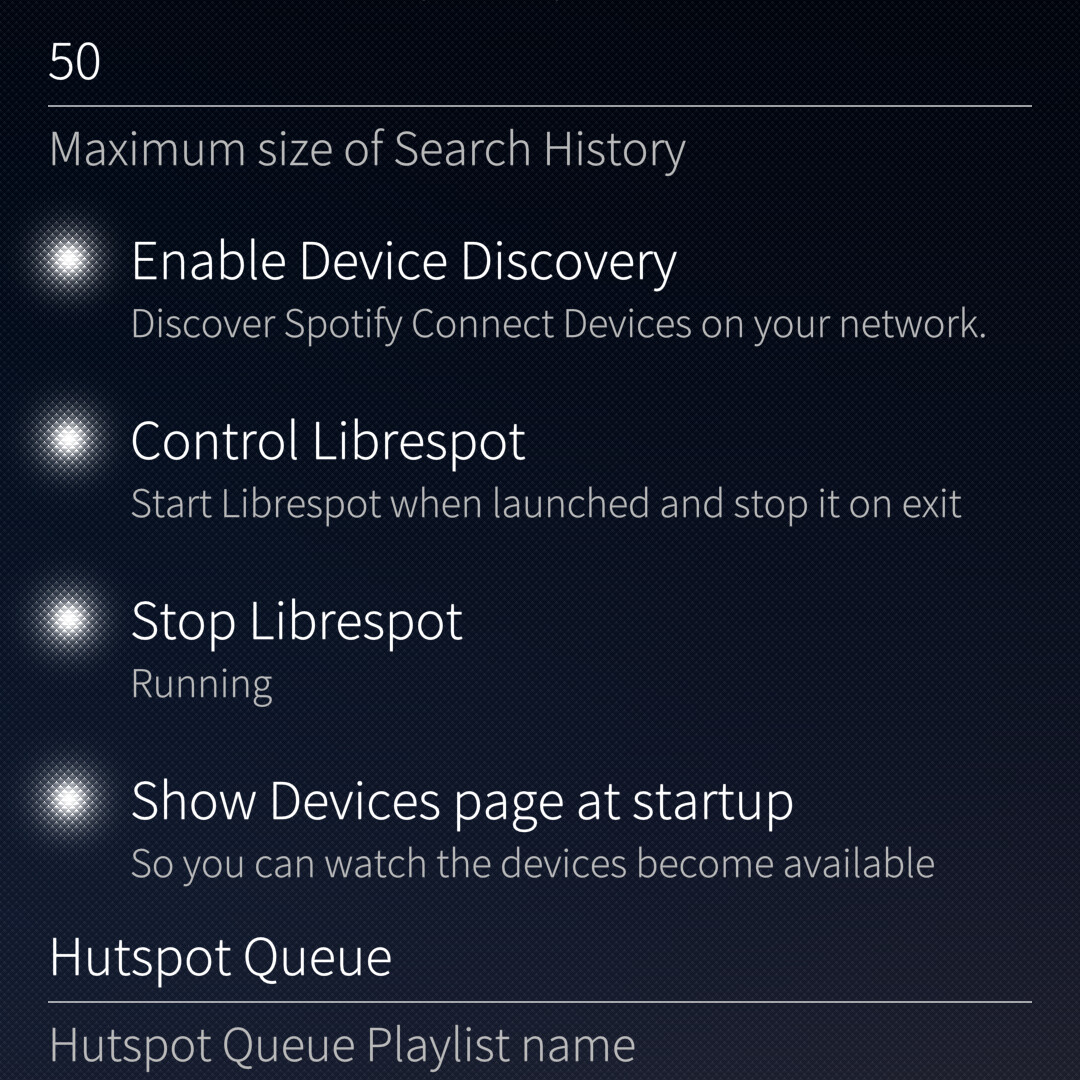
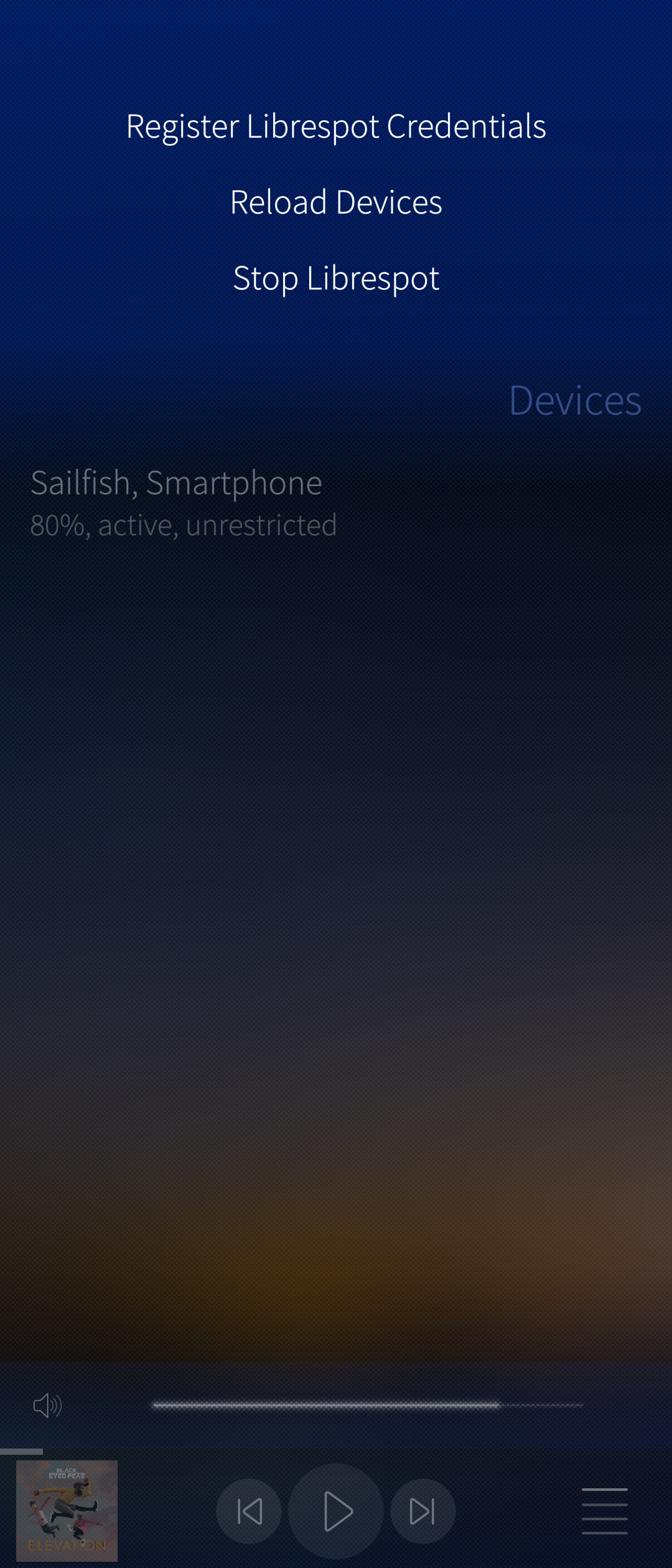
If you have installed Librespot as a service AND have started Librespot once from the terminal to put in your credentials (see below), you can control Librespot right from the GUI of Hutspot. To do this, tap on the Hamburger-menu (four lines) in the bottom right corner of Hutspot and navigate to Settings. There, you need to activate "Control Librespot" (Like seen in this screenshot ). This will start Librespot with Hutspot and terminate it when Hutspot is closed. On this page, you can also start/stop Librespot manually. This is also possible from the Pull-Down-Menu of the Devices-page (Like seen here).
NOTE: you might need to add
[X-Sailjail]

Sandboxing=DisabledSometimes, it can take very long (up to 2 minutes) for Librespot to connect to Spotify's servers. You can check the status with systemctl --user status librespot
Starting Librespot from the terminal
You can also start Librespot from the terminal, where you can make your configuration directly. If you have built Librespot yourself, you need to execute Librespot from the path where you built it. The executeable is typically stored under <PATH TO LIBRESPOT SOURCE>/target/release/. For more overview of which options are possible for Librespot, you can look here.
Generally, you would want the --username option, the --cache option (so you don't need to type in your password everytime), the -n option to give the instance a name and the --backend option (which needs to be set to pulseaudio). For newer versions of Librespot you also need the --enable-oauth flag in order to login. When you use it for the first time, it will open a browser window where you need to login to Spotify.
An example command could look like this:
/home/defaultuser/librespot/target/release/librespot --cache /home/defaultuser/.cache/librespot --username <YOUR USERNAME> --enable-oauth -b 320 -n MyAwesomeLibrespotBuild --backend pulseaudio --device-type smartphoneNOTICE: If you launch Librespot this way, you won't be able to control its volume via the volume-buttons on your device, you can only control it via the volume-slider in Hutspot. If you want to use the volume-buttons, you need to execute Librespsot in the following way:
/bin/env "PULSE_PROP_media.role=x-maemo" <YOUR LIBRESPOT COMMAND LIKE ABOVE>Setting Librespot as the current device
If Librespot is running, you can use it to play songs from Spotify via Hutspot. To do this, open Hutspot and navigate to the Devices-page. All connected Spotify devices will show up there (which includes Librespot-instances). To use a device, long press on the device and choose "Set as active device" (first option in the menu). Congratulations, you can now play, pause and skip songs via Hutspot which will be played using your SailfishOS-smartphone.

Known Issues / Working versions
Known issues
- Starting Librespot, especially connecting to Spotify's Servers can sometimes take a very long time. Sometimes you need to try it a few times until it connects.
- When you use Hutspot to control Librespot and you use it for the first time, after you completed the login flow in the browser, wait patiently for Librespot to appear in the devices list and DO NOT CLICK ON "REFRESH DEVICES" as this will trigger the authentification flow again!! If you want to watch Librespot's status, you can use the terminal with
systemctl --user status librespot. Librespot is ready when the last line of the status saysactive device is <> with session <some string>
- When you use Hutspot to control Librespot and you use it for the first time, after you completed the login flow in the browser, wait patiently for Librespot to appear in the devices list and DO NOT CLICK ON "REFRESH DEVICES" as this will trigger the authentification flow again!! If you want to watch Librespot's status, you can use the terminal with
- Libresspot sometimes randomly crashes. Just restart it either via Hutspot or in the terminal with
systemctl --user restart librespot
Working versions
| Working? |
Librespot version |
SailfishOS-Version |
Device tested on |
Comments |
| YES | 0.8.0 | 5.2 | Jolla Phone 2026 |
needs
|
| YES |
0.8.0 |
5.1.0.11 |
Sony Xperia 10 III |
needs --enable-oauth, own build |
| NO | 0.6.0 | own build and pre-built package | ||
| YES | 0.4.2 | 5.1.0.11 | Sony Xperia 10 III | needs --username <YOUR USERNAME>, own build |
Help links
If you need help, here are a few useful links to various posts in the SailfishOS-Forum:
- https://forum.sailfishos.org/t/hutspot-for-aarch64/8231
- https://forum.sailfishos.org/t/cargo-install-error-this-is-the-stub-cargo-if-you-see-this-scratchbox2-is-not-working/11478
Qt 6 experimental
@piggz and @rinigus have launched another effort on chum to make more modern kde apps built with qt6 available via the chum repos on jolla's obs build server. Here we document some useful apps and how to install them.
Early access to Qt 6 libraries and apps
Currently (January 2026) the repositories need to be added "manually" from a terminal session either from the Terminal application or an SSH connexion.
Follows an example of how to install the application Angelfish, a Chrome-based web-browser that is fairly modern (and all its dependencies)
First you need to add two repositories:
devel-su ssu ar "piggz-qt6-apps" "https://repo.sailfishos.org/obs/home:/piggz:/qt6apps/sailfish_latest_aarch64/"
devel-su ssu ar "piggz-qt6sb2" "https://repo.sailfishos.org/obs/home:/piggz:/qt6sb2/sailfish_latest_aarch64/"
Then you have to reload your repositories catalogs, and install qt-runner-qt6 and angelfish:
devel-su pkcon refresh
devel-su pkcon install qt-runner-qt6 angelfish
You'll get 2 new icons:
- one green with big Qt letters, it's Qt-runner;
- and a blue and yellow fish, it's Angelfish.
First open Qt-runner and sets the "Override DPI" setting between 280 and 320 (with a Sony Xperia 10 III, I use 300). Apply your choice swyping from left to right.
Then you can start Angelfish and browse the web.
The following page lists more Qt 6 / KDE Plasma mobile applications available.
Qt 6 / KDE Apps
A number of apps are available
| amber-mpris-qt6 |
| angelfish |
| kasts |
| kde-itinerary |
| keysmith |
| kf6-mpvqt |
| ktrip |
| libass |
| mpv |
| qcoro |
| qmlkonsole |
| supersonik |
| tokodon |
| wave |
Dark theme
When using OLED devices, such as the Sony Xperia 10 II and III, using dark (if not completely black) backgrounds saves a lot of battery. It is because with OLED screens, each pixels are individual LED that can be switched on or off. A black pixel is really a switched-off light. The more black pixels you display the less your screen consumes energy (and the screen is the biggest consumer part of your phone).
KDE Qt 6 applications comes with the Breeze theme in light version, meaning with black letters on dark background. This is the standard because it mimics paper and is read faster by non trained people. A dark version of the Breeze theme exists, and you can install it.
- You'll have to download the definition file : https://github.com/KDE/qqc2-breeze-style/blob/master/style/BreezeDark.colors
- Then copy it to the
/home/defaultuser/.config/folder and renamed it “kdeglobals”. This can be done using the FileManager, or themvcommand in a terminal.
Now if you start a Qt 6 application again, like Angelfish, it will be using a dark background.
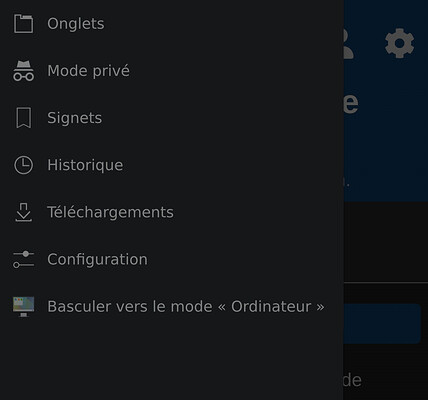
It exists other themes for Qt 6 with dark variations (like Material or Universal), but icons are not installed for them.
Revert modifications
To remove your installations you can use the following commands:
# remove packages
devel-su pkcon remove angelfish qt-runner-qt6
# remove repos
devel-su ssu rr piggz-qt6-apps
devel-su ssu rr piggz-qt6sb2
# update package cache after remove, not really needed
devel-su pkcon refresh